Minimal PDF · free for Windows
Nothing but the page.
A PDF viewer whose window is the document. There's no title bar, toolbar, menu or scrollbar, and no network at all. It opens at fit width and stays sharp at any zoom.
v1.0.0 · first release in testing · about 25 MB · Windows 10 and 11
A drawn demonstration, 20 seconds, no sound: Minimal PDF snapped beside a spreadsheet. The desktop and the spreadsheet are recreations, and the statement is a sample for a company that does not exist.
- Opens at
- Fit width, continuous pages
- Zoom
- 10 % to 800 %, around the pointer, re-rendered sharp at every step
- Program
- One file, about 25 MB
- Network calls
- 0, ever
Three gestures do most of the work.
Everything else is a key you already know. The wheel scrolls, Shift and the wheel scroll sideways, and the arrow keys turn pages. You never have to find a button, because there are none.
Zoom around the pointer
The spot under the pointer stays put while the page grows or shrinks, from 10 % to 800 %. The old image stretches at once, and a fresh sharp render replaces it a moment later.
Ctrl+wheel
Drag the paper to pan
Grab the page anywhere and move it, at any zoom. It works like paper on a desk, with no hand tool to pick first.
drag
Move the window
There's no title bar, so hold Ctrl and drag anywhere, or drag the grey around the page. Double-click to maximize. Snap layouts and Win + arrow keys work as usual.
Ctrl+dragordrag the grey
Drawn at your pixels, never stretched.
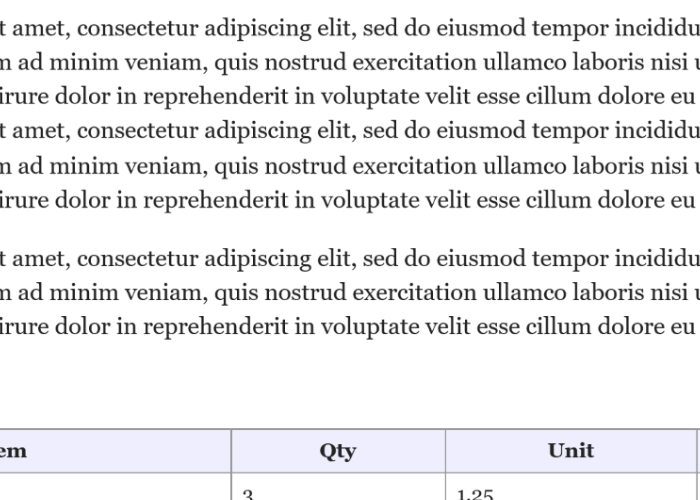
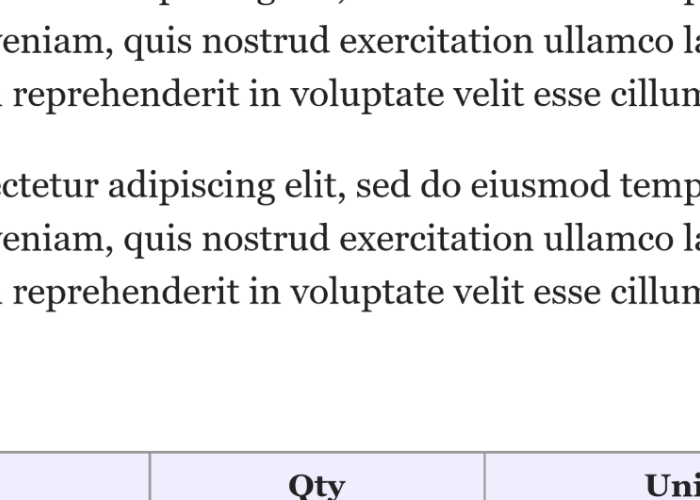
Each page is drawn by Windows' own engine at the exact device-pixel size it fills on your monitor. Zoom in and it is drawn again at the new size, not scaled up. These are 1:1 crops of real captures, with no resampling.
Continuous pages
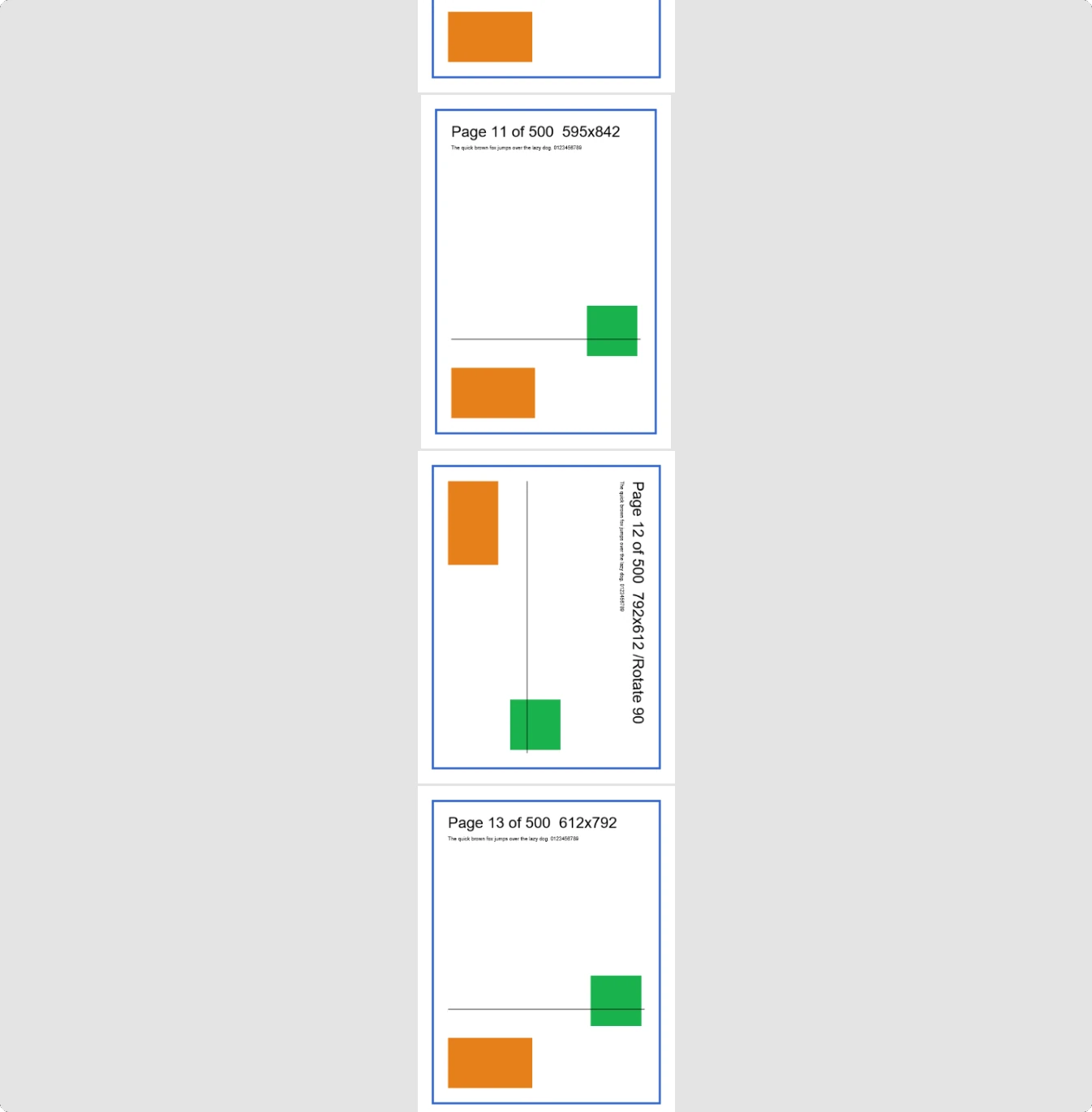
A 500-page file scrolls like a short one.
Pages are drawn as they come into view, so long documents open fast. Mixed page sizes and rotated pages sit in one column, and the page badge tells you where you are, then fades.
Every control, on one screen.
The empty window shows the essentials when nothing is open. Here is the full list.
What it doesn't do.
The missing features are the product, so here they are up front. If you need any of them, SumatraPDF and PDF-XChange are good, and we'll say so.
- No search or find yet
- No text selection or copy yet. Highlights and copy come in 1.1
- No annotations, forms, signing or editing
- No printing
- No bookmarks, outline, thumbnails or tabs
- No password-protected PDFs. It tells you so and stops
- No dark mode or colour inversion
- It doesn't remember the last file or window position
- No settings, preferences file or registry entries of its own
- No auto-update, telemetry or network access of any kind
- No macOS or Linux version. The renderer is part of Windows
Install, then make it your default.
The first release is in testing. This is what installing will look like.
- 01
Run the installer
It installs for your user only and needs no administrator rights. It adds a Start menu entry and, if your PC doesn't have it yet, fetches Microsoft's .NET Desktop Runtime 10. Prefer a single file? The portable build is the same program with no installer.
- 02
If Windows says it protected your PC
Early-access builds aren't signed yet, so SmartScreen will warn you. Click
More info, thenRun anyway. Every release's SHA-256 is listed on the trust page, so you can check the file first. - 03
Make it the default, in two clicks
Right-click any PDF, choose
Open with, pick Minimal PDF and tickAlways. Windows doesn't let programs set this for you, which is also why Edge can't quietly take it back.Open Default apps settings, which opens Windows Settings.
Requirements. Windows 10 version 2004 or later; Windows 11 recommended, since on Windows 10 the frame is square rather than rounded. x64. Any display scaling. The .NET Desktop Runtime 10, which the installer adds if it's missing. For the portable build, get it from Microsoft.
Questions we expect.
Why not SumatraPDF?
Use Sumatra if you want tabs, search, annotations or ePub. It's small, fast and honest, and it has been for twenty years. Minimal PDF is for the other case: you want the page and nothing around it, inside the frame Windows 11 draws, and you'd rather have fewer things than more.
Why does it need the .NET runtime?
Version 1.0 is built on .NET 10, so the installer fetches Microsoft's .NET Desktop Runtime 10 if your PC doesn't have it. We're working on a build that uses the .NET Framework already inside every copy of Windows 10 and 11, so there's nothing extra to install and the program shrinks to a fraction of its size.
Why is it 25 MB if it does so little?
Almost all of it is Microsoft's bridge between .NET and the Windows APIs, which the framework can't trim. The app's own code is a small part of the file. The size doesn't slow down opening a document, and the build mentioned above removes it.
Can I select, copy or search text?
Not in 1.0. Version 1.1 adds highlighting and copying: drag across words, and the highlight is saved into the PDF as a standard annotation. The words come from the OCR engine inside Windows, run locally, so it works on scans too. Search follows.
How do I move a window that has no title bar?
Hold Ctrl and drag anywhere, or drag the grey area around the page. Double-click to maximize and again to restore. Win + arrow keys, Win + Z snap layouts and Alt + Space work as they do for any window.
Is it safe to open PDFs I don't trust?
The file is parsed by the PDF engine inside Windows, which Windows Update keeps current. The app runs no scripts, has no network access and runs with your normal user rights. That's less exposure than a browser tab or a full PDF suite.
Does it work on Windows 10, ARM64 or a Mac?
Windows 10 from version 2004 works, with a square one-pixel frame instead of rounded corners. An ARM64 build comes after the first release. There's no macOS or Linux version, because the renderer is a Windows component. Staying on it is what keeps the app small and free of other code.
Why does Windows warn me when I run it?
Early-access builds aren't code-signed yet, and SmartScreen warns about unsigned programs that few people have run. Signed releases will name the maker as publisher. You can check any download against the SHA-256 on the trust page.
How was it built?
By Federico Etinger, with Claude as the pair programmer and Grok as a second reviewer, starting from one prompt on 15 September 2026. The build log shows who decided what and how it was tested.
Next, in 1.1: drag across words to highlight them, saved into the PDF itself.